SecureDrop Inbox, the new window into the SecureDrop Workstation, has been rewritten from the ground up to replace the previous client application for existing journalist users. And while it has the same core functionality, it also includes bug fixes, speed improvements, and a range of new features, from full-text search and conversation filtering to a new sync indicator and more keyboard shortcuts.
In this post, we review some of those new features, which journalists will find when the new Inbox application arrives in mid-April. And for more on why we created Inbox, read our companion post.
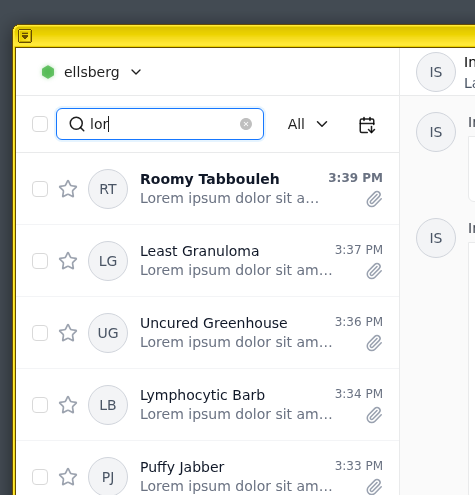
Full-text search
SecureDrop Inbox can search across source names, messages, and filenames to help you more easily find what you’re looking for.
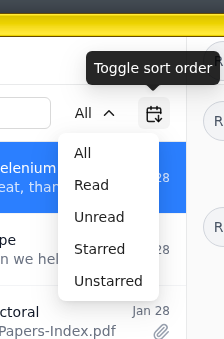
Filter between starred, read, and unread conversations
You can quickly switch between different categories of conversations. Highlight sources you want to return to, or focus on ones you haven’t yet reviewed. This is especially useful when managing a high volume of tips or returning after time away.
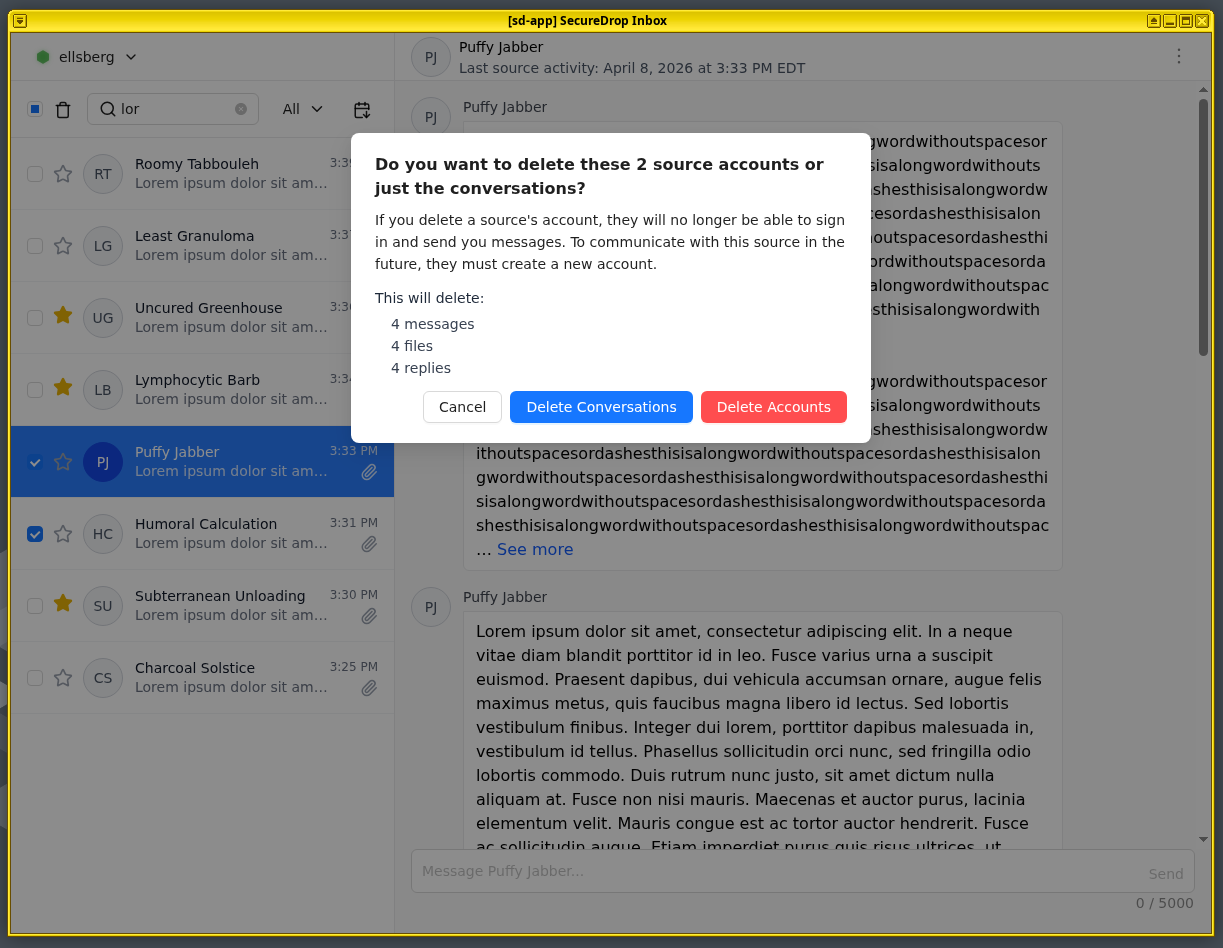
Improved multiselect and multidelete
Thanks to changes in the user interface and to performance improvements under the hood, it’s faster and easier than ever to manage conversations you no longer need and to process sources sending spam or other unhelpful content.
Tip: This can be very powerful when used in combination with search!
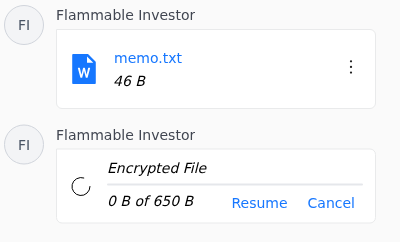
Cancel and resume downloads
In some cases, large downloads can get stuck. While the new Inbox should be more resilient to these kinds of hiccups, you can now cancel a download and later resume it.
If a download fails, Inbox will automatically reattempt the download five times before giving up.
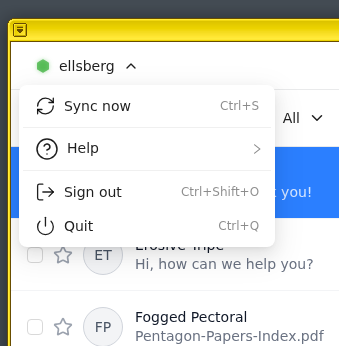
New sync indicator
SecureDrop Inbox features a less obtrusive sync indicator. You’ll only be notified if something is wrong with the connection to your server; otherwise, SecureDrop Inbox gets out of your way. The menu also features access to a few useful functions and an all-new help screen, in case you get stuck.
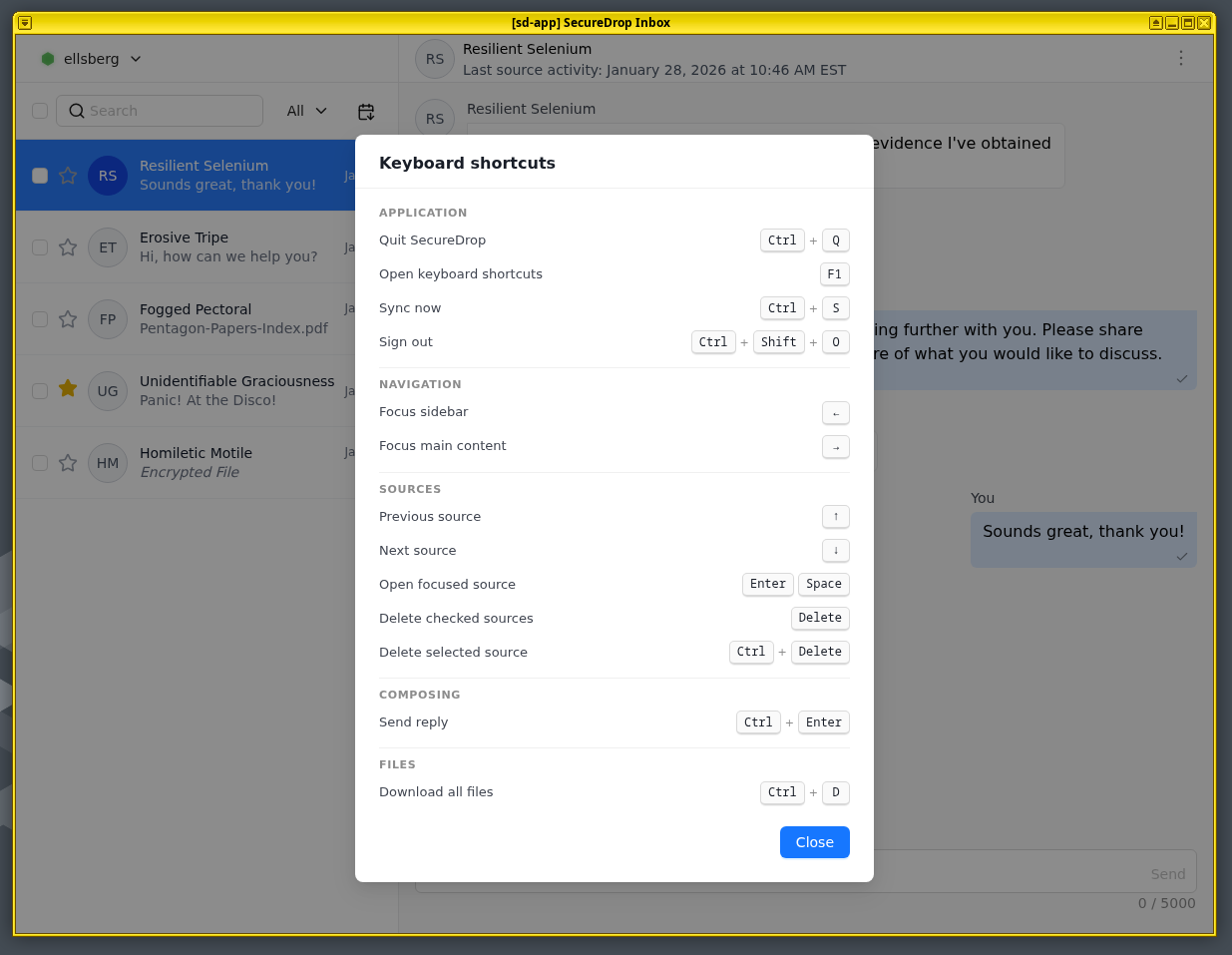
Keyboard navigation
If your SecureDrop instance regularly receives a lot of submissions, it’s important for you to be able to process them promptly. We now include several keyboard shortcuts to make triaging and replying to sources even faster.
Performance improvements
The Inbox app is tested to reliably handle at least 1,500 sources without slowing down, compared with a few hundred sources with the previous client application. After the initial synchronization with your SecureDrop Server, actions are processed quickly, and you can scroll through and interact with hundreds of messages with minimal delay. We still recommend deleting sources from your server once you have processed them, for security purposes.
Interested in using SecureDrop Inbox?
If you are an existing SecureDrop Workstation user, the Inbox replaces the existing Client in an automatic update over the coming weeks. You may still access the original client application for up to one month after the release, in case you run across any issues and need to temporarily fall back. If you do find any issues, please report them to the SecureDrop Team via your dedicated Signal group, so we can further improve the Inbox.
If you are not yet using SecureDrop Workstation and would like to learn more, please reach out to our support.